




Once I got my iPhone, my digital camera went on a shelf and hasn’t seen the light of day for over two years. While taking pictures using my phone is convenient, importing photos to my computer just to edit them can be time consuming. I’ve been looking for a good photo editing app, and PicsPlay Pro is the first one that I have found to be easy to use and full of features.
PicsPlay Pro, by JellyBus Inc., is available for iPhone and iPad; the app costs $3.99, and you get a lot of features for the price. With PicsPlay Pro, you can take photos, rotate, crop, add text, and alter your photos with 200 photo effects, ranging from beginner to pro.
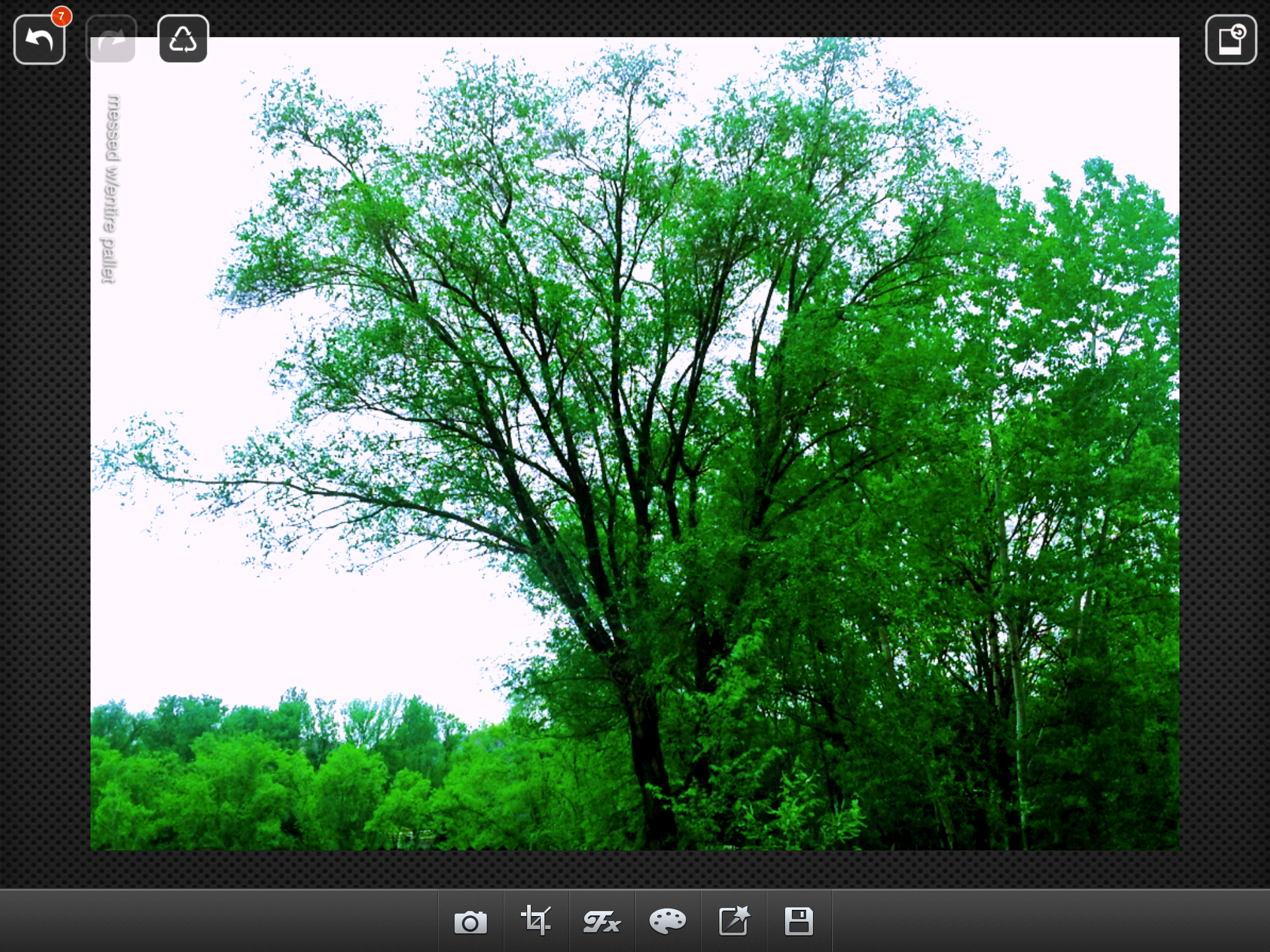
At the bottom of the screen are six icons: a camera, the crop symbol, Fx, an artist’s pallet, a square with a shooting star, and the save symbol. You can load a photo or take a photo by selecting the camera. The save feature allows you to save to your camera roll or share your photo to Instagram, Twitter, Facebook, Tumblr or Flickr. To rotate or crop your photo, you pick the crop icon. The bulk of the editing features are in the other three icons.

L to R: Original photo, Negative theme found through FX Studio, Color Splash, Tilt-Shift
The Fx icon brings up the FX Studio, Color Splash, Tilt-Shift, and Time Matrix options. The FX Studio has all of the available special effects placed into ten themes like Beauty, Blur, HDR, Art, and Vintage. Color Splash turns your color photo black and white so you can use your finger to “color in” what parts of the photo you want to be in color. This can be difficult to do on your iPhone and if the area you want in color is a small section of the photo. Tilt-Shift lets you put part of the photo in focus and blur the rest. Time Matrix is a collection of effects organized by decade starting with the 1950s and ending in the present.
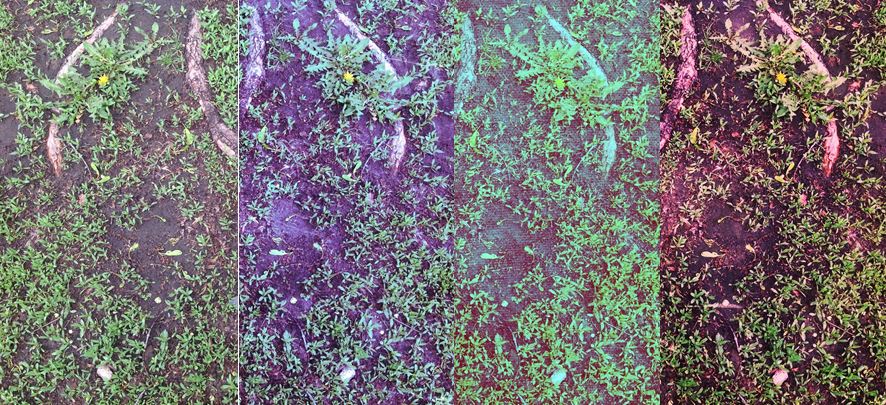
L to R: Original photo, Time Matrix examples – 1960 Vertigo, 1970 Overdue, 1980 Slasher
Under the artist’s pallet are the options to adjust exposure (contrast and brightness), color (hue and saturation), white balance (color temperature and tint), and sharpness (radius and opacity). There are also two advanced features, Curves, which allows you to delicately change the tones of various colors, and Histogram, a way to fine-tune the exposure.

Left: Original photo; Right: After using the pallet options
The square with the shooting star has text, painting, stamps, textures and borders. Sometimes I cover events and have to keep track of what photos I take, and I like how I can take a photo with this app and easily add text. There is a good selection of different stamps, borders and textures, so you can personalize your photos in many ways.

Playing with textures, borders, painting, vignetting, and stamps.
The one flaw I have with the app is a lack of help. There is a video tutorial, but it’s on YouTube, and I don’t like being taken out of an app. Curves and Histogram are the only two features that have any clarification in the app. The lack of help encourages you to play, and the undo feature is very generous. During one session, I was able to undo my last seven acts. A button in the top right lets you see the original, so you can easily see what your changes have done. The best part is that when you save your new creation, the new photo does not overwrite the original; a copy is made, leaving the original intact to be altered again. Although the app does lack a handy reference, the app is easy to use, switching to different categories was smooth and quick. With all of the available editing tools and themes, I felt I could alter the same photo multiple times without feeling stale or limited. PicsPlay Pro is simple to use and is a comprehensive photo editing app that is worth the cost; with PicsPlay Pro, I don’t need any other photo editing apps.

Oooh, I’ll have to try this one!